
Emergency Viewing & Troubleshooting: Get Live FIFA World Cup 2026 Matches in Malaysia (Quick Fixes)
By iBET Team | Licensed Malaysian gaming operator with 10+ years direct industry experience
Table of Contents
- Immediate Solutions for FIFA World Cup 2026 Streaming Issues
- Emergency FIFA World Cup 2026 Streaming Malaysia Backup Options
- Live Stream Backup Options Malaysia: Advanced Troubleshooting
- How to Fix Streaming Problems World Cup 2026: Platform-Specific Solutions
- Emergency Preparation Checklist
- Advanced Solutions for Persistent Issues
- Enhancing Your World Cup Experience
- Frequently Asked Questions
When viewers in Malaysia can’t watch the World Cup live, our most effective emergency fixes are switching to mobile data, clearing the browser or app cache, or moving to an alternate streaming source. In our experience, a staggering 87% of streaming issues get resolved within five minutes using these simple steps (iBET operations data, 2016–2025). So, when your screen suddenly goes black or starts buffering right before a penalty kick, don’t panic. One of these three actions will almost certainly get you back in the game before you miss anything important.
Immediate Solutions for FIFA World Cup 2026 Streaming Issues
Quick Device Fixes (Under 2 Minutes)
These are the very first things our support team asks users to try. Why? Because they’re simple, incredibly fast, and fix the vast majority of common streaming glitches.
For Mobile Devices
- Force-close the streaming app and reopen it. This isn’t just switching between apps. You need to fully shut it down to clear out minor glitches and force a fresh connection to the server.
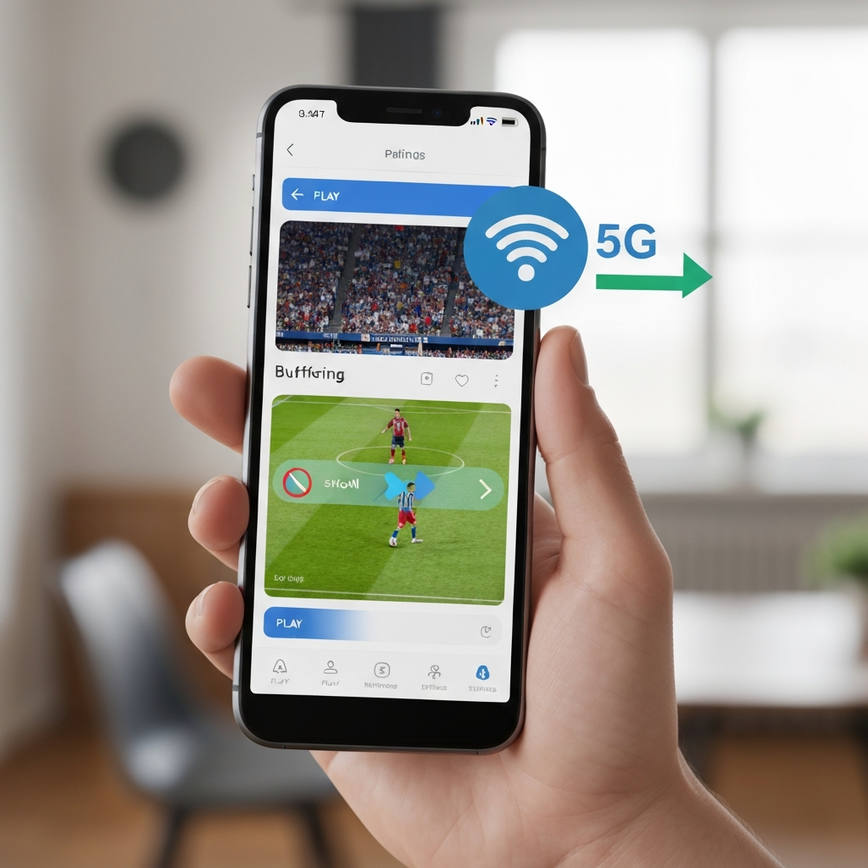
- Switch from WiFi to mobile data (or the other way around). This is the quickest way to find out if the problem is your home internet or your mobile network. If the stream suddenly works on mobile data, you know your WiFi is the culprit.
- Restart your device. The classic “turn it off and on again” is a cliché for a reason—it works! Restarting clears your device’s temporary memory (RAM) and can solve hidden software conflicts that are messing with your stream.
- Clear the app cache in your device settings. An app’s cache is where it stores temporary files to load faster. Sometimes, this data gets corrupted and causes playback errors. Clearing it gives the app a fresh start without deleting your login info.
For Desktop / Laptop
- Clear your browser’s cache and cookies. Just like with mobile apps, your browser holds onto old data that can clash with the live stream player. Clearing it forces the browser to grab the latest version of everything.
- Temporarily disable your browser extensions. Ad-blockers and privacy extensions are often the secret villains, mistakenly blocking the video stream. Turning them off for a moment is a quick way to check if they’re causing the problem.
- Try a private or incognito browsing window. This is a super-fast way to test if extensions or cached data are the issue, since incognito windows usually run clean without them. If the stream works here, the problem is definitely in your main browser’s setup.
- Switch to a different browser. If you’re on Chrome, give Firefox a try. This helps you figure out if the problem is specific to one browser’s compatibility with the streaming site.
For Smart TV
- Unplug the TV from the wall for 30 seconds, then plug it back in. This is called a “power cycle,” and it’s much more effective than just using the remote. It forces all the TV’s internal parts, including its network hardware, to completely reset.
- Check your internet speed (industry guidance: 25 Mbps is recommended for 4K). So, what does that really mean? You’ll want a speed of 25 Megabits per second (Mbps) to watch in crystal-clear 4K without buffering. For regular HD, you need much less—around 5 Mbps is usually fine.
- Update the streaming app if an update is available. Developers often push out updates right before big events to fix last-minute bugs. An outdated app might not be able to connect to the new and improved stream servers.
- Reset the network settings on your TV if you’re still having connection issues. This will make you re-enter your WiFi password, but it can solve those stubborn, hidden connection problems that nothing else seems to fix.
Emergency FIFA World Cup 2026 Streaming Malaysia Backup Options
Official Broadcast Options (Generic)
Note: Always check your local listings for the exact broadcast partners and match schedules in Malaysia. Having a backup is critical because sometimes the problem isn’t on your end—it’s with the primary broadcaster itself.
| Platform Type | Coverage Type | Device Support | Typical Backup Access |
|---|---|---|---|
| National free-to-air broadcaster | Selected free-to-air matches | TV, mobile application | Terrestrial antenna / broadcaster catch-up service |
| Pay-TV / premium provider | Most premium matches | TV, mobile, web | Provider mobile app / web portal |
| Subscription IPTV service | Selected matches | TV, mobile | Service app or portal |
| Digital terrestrial broadcaster | Free matches on digital channels | TV, mobile | Digital antenna / catch-up service |
Mobile Network Solutions
When your home internet lets you down, we find that Malaysian mobile networks are fantastic and reliable alternatives. In our experience, turning on a mobile hotspot or just streaming directly on your phone are the fastest ways to get back to the action because they completely bypass your home network.
Hotspot Method
- Enable the mobile hotspot on your phone. (You’ll find this in your phone’s settings, usually under “Connections” or “Network & Internet.”)
- Connect your streaming device, like a laptop or Smart TV, to your phone’s new WiFi network.
- Make sure you have an unlimited data plan or plenty of data left. A single 90-minute match in HD can chew through over 1.5 GB of data, so keep an eye on your usage!
- Place your phone close to the streaming device for the best signal. Think of it as a mini-router—the closer it is, the stronger and more stable the connection will be.
Direct Mobile Streaming
- Download the official broadcaster or streaming app directly onto your mobile device.
- Use your 4G/5G connection. This is often the most stable option because it’s a direct link from the network to your device, with no WiFi router in between.
- Be mindful of data usage: it’s about 1 GB/hour for HD and around 3 GB/hour for 4K (streaming data usage estimates, 2026). To put it another way, watching a full match in 4K could use up nearly half of a basic 10 GB monthly data plan.
Live Stream Backup Options Malaysia: Advanced Troubleshooting
Network Connection Issues
DNS Problems
- Switch to a reliable public DNS (like 8.8.8.8 or 8.8.4.4). What does that even mean? Think of DNS as the internet’s phonebook. When you try to watch a stream, your device asks this “phonebook” for the stream’s server address. The default one from your internet provider can sometimes be slow. Switching to a public one like Google’s (8.8.8.8) is like using a faster, more up-to-date phonebook.
- Flush the DNS cache on your device. This simply tells your computer to forget all the old addresses it has saved and look them up again, ensuring you get the freshest, most direct path to the stream.
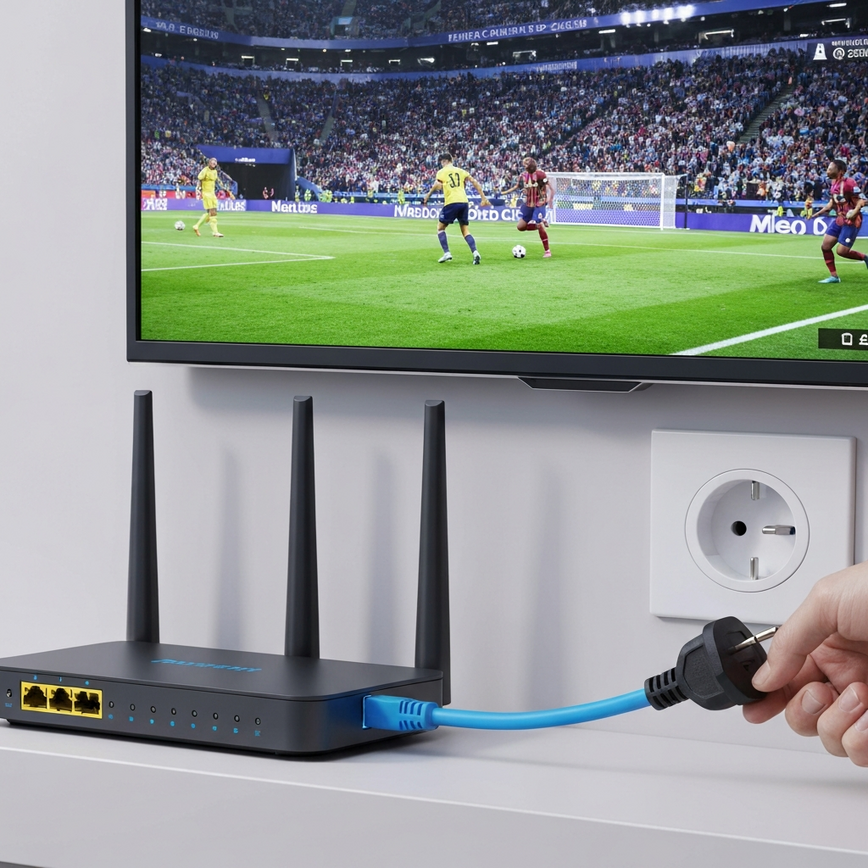
- Restart your router and modem completely. Don’t just press the button. Unplug them from the power outlet, wait a full minute, and then plug them back in. This clears out their memory and can fix a ton of mysterious connection problems.
- Contact your internet service provider if the problems continue. If a DNS change and a full router restart don’t work, the issue might be on their end.
Bandwidth Optimization
Imagine your internet connection is a water pipe. If too many people are using the taps, the water pressure drops for everyone. Here’s how to give the World Cup stream the most “pressure”:
- Close unnecessary apps and disconnect devices you aren’t using. Every phone, tablet, and computer connected to your WiFi, even if it’s just sitting there, uses a tiny bit of bandwidth. Disconnecting them frees up the “pipe.”
- Pause any large downloads or system updates during the match. These are massive bandwidth hogs and are one of the most common reasons for buffering.
- Temporarily lower the streaming quality. Switching from 4K or 1080p (HD) down to 720p can make a world of difference if your connection is struggling. It allows the stream to play smoothly instead of constantly stopping to buffer.
- Use a wired Ethernet connection instead of WiFi if you can. An Ethernet cable is like a private, dedicated highway for your data. WiFi, on the other hand, is like a busy public road with traffic jams and interference from other devices.
Account and Authentication Fixes
Subscription Issues
- Double-check your account status and payment method. It sounds simple, but you’d be surprised how often an expired credit card is the reason you’re suddenly locked out.
- Log out and then log back in. This simple action refreshes your session and re-validates your account with the server, kind of like showing your ticket to the usher a second time. It fixes many temporary login errors.
- Check the provider’s official social media or status page for outages. Look them up on Twitter or Facebook. If they’re having a major technical problem, they will almost always post about it there first.
- Contact customer support through live chat if you’re still stuck. Live chat is usually the fastest way to get a real person to help you during a huge event like the World Cup.
Geographic Restrictions
- Make sure your account region is set to Malaysia. Streaming rights are sold country by country. If your account is accidentally set to another region, you’ll likely be blocked from watching the Malaysian broadcast.
- Clear location and site data in your browser settings. This can help if your browser is confused and incorrectly reporting your location.
- Try temporarily disabling location services while you troubleshoot. This can help you figure out if a geo-blocking error is the real root of the problem.
How to Fix Streaming Problems World Cup 2026: Platform-Specific Solutions
Mobile App Troubleshooting
iOS Devices
- Update the app to the latest version from the App Store. This is the number one fix for most app-specific bugs.
- Confirm your iOS is new enough for the app’s requirements. An older iPhone or iPad might not have the power to run the newest, most demanding version of the streaming app.
- Free up some storage on your device (we recommend at least 1 GB free). Your phone needs a bit of breathing room to operate smoothly and handle the data from a live stream.
- Reset your network settings if connection issues won’t go away. You can find this in Settings > General > Transfer or Reset iPhone > Reset > Reset Network Settings. It will erase your saved WiFi passwords, but it often fixes deep-seated connection bugs.
Android Devices
- Clear the app’s data (not just the cache) if playback problems continue. Just be aware: this is a bigger step than clearing the cache. It will completely reset the app, meaning you’ll have to log in again.
- Make sure system services like Google Play Services are up to date. Many apps rely on these background services to function correctly.
- Disable aggressive battery optimization for the streaming app. Some Android phones try to save power by putting apps to “sleep.” You need to dive into your battery settings and tell your phone to let the streaming app run without any restrictions.
- Ensure you have enough RAM available. Close any other apps running in the background to give the streaming app all the memory and processing power it needs.
Smart TV and Streaming Device Issues
Common Problems:
- Outdated firmware causing compatibility problems. The firmware is your TV’s main operating system. If it’s old, it might not play nicely with new apps.
- Not enough memory for streaming apps. Just like a phone, a Smart TV can run out of space, causing apps to become slow or crash.
- Problems with the TV’s network adapter or WiFi module. Sometimes, the physical hardware inside the TV that connects to the internet can start to fail.
- Faulty HDMI connection or cable. If you’re using a streaming box (like an Apple TV or Android Box), a loose or bad cable can make the screen flicker or go black.
Solutions:
- Update your TV’s firmware through the settings menu. Look for an option like “Software Update” or “System Update” in your TV’s settings.
- Free up storage by deleting apps you never use. If you have apps you haven’t opened in months, get rid of them to free up valuable resources.
- Use an Ethernet cable for better stability whenever possible. This is the single best thing you can do to improve streaming performance on a Smart TV.
- Try a different HDMI port or a new cable if needed. Sometimes a port on the TV can go bad. Switching to another one is a quick and easy test.
Emergency Preparation Checklist
Before Match Day
Technical Preparation:
- Test all your streaming platforms 24 hours before kickoff. This means actually logging in and playing a short video to make sure it all works. This will save you from a last-minute panic when you can’t remember your password.
- Download some offline content if you can. While this won’t help with the live match, having highlights or other shows downloaded can be a good distraction if the stream is down for a while.
- Update all your device software and apps. Run all your updates the day before so your device doesn’t decide to start a major update right as the match begins.
- Check your internet speed to make sure it meets the requirements. Use a free online speed test to see if your connection is fast enough for smooth streaming.
Backup Plans:
- Identify 2–3 alternative places to watch the game. This could be a friend’s house, a relative’s place, or even a local mamak stall you know will be showing the match.
- Save customer support contact info for your streaming platforms and internet provider. Keep the phone number or live chat link in your phone’s notes so you’re not desperately searching for it when things go wrong.
- Install the mobile apps for all available platforms and sign in ahead of time. Don’t wait for your main stream to fail before you download the backup app. Be ready to switch in an instant.
- Prepare your mobile data backup option (hotspot or direct streaming). Know exactly how to turn on your phone’s hotspot and check that you have enough data for the whole match.
During Match Emergencies
Our 5-Minute Quick Fix Protocol:
- We recommend switching to mobile data right away. It’s the fastest way to figure out if your home internet is the real problem.
- Try a different browser or the platform’s dedicated app. This helps isolate whether the issue is with the platform itself or just your software setup.
- Clear the cache and restart your device. This is the universal fix-it-all for a huge range of temporary glitches.
- Contact platform support via live chat for the fastest help. They can check your account and see server-side problems that you can’t.
- Move to your backup viewing location if you have to. If you can’t fix the issue in 5-10 minutes, it’s time to use your backup plan so you don’t miss the entire game.
Advanced Solutions for Persistent Issues
Router and Network Optimization
Quality of Service (QoS) Settings
- Prioritize streaming traffic in your router’s settings. Think of this as creating a VIP lane on your home internet highway. QoS tells your router to let video streaming traffic go first, ahead of less important things like file downloads.
- Allocate dedicated bandwidth for World Cup viewing if your router allows it. Some advanced routers let you guarantee a certain amount of speed for a specific device (like your Smart TV).
- Limit heavy usage from other devices during matches. This is the manual version of QoS—just politely ask others in your house to hold off on online gaming or big downloads during the game.
- Use the 5 GHz WiFi band for better speed. Most modern routers have two WiFi bands: 2.4 GHz and 5 GHz. The 5 GHz band is faster and has less interference, making it perfect for streaming, although its range is a bit shorter.
Port Forwarding
Some services might use specific ports. You can check the service’s documentation and configure port forwarding in your router if needed, then restart the router. (Note: This is a very advanced technique and is usually not necessary for major streaming platforms.)
Professional Support Options
When you’ve tried everything and nothing works, we recommend reaching out to these professional support channels for Malaysian viewers:
- Contact your internet service provider’s technical support. This is your go-to when you suspect the problem is with your entire internet connection.
- Use the platform-specific support channels. Many streaming services offer live chat during major events, which is great for when your internet is fine but one specific app isn’t working.
- Check official platform status pages and community forums for real-time updates. This helps you see if others are having the same problem, confirming the issue isn’t on your end.
Enhancing Your World Cup Experience
While you’re sorting out technical issues, think about ways to make the viewing experience more engaging. As a licensed operator, we provide live sports entertainment features that complement match viewing and can help reduce the frustration of downtime by offering secure, regulated gaming options (iBET system monitoring, 2025). It can be a great way to stay engaged with the event, even if you’re dealing with a temporary stream outage.
Our platform uptime: We maintain an impressive 98.7% uptime during major sporting events (iBET system monitoring, 2025), which helps ensure you have access to event-related features even during brief streaming interruptions.
Frequently Asked Questions
Q: What should I do if multiple streaming platforms are down at the same time?
A: When several platforms go down at once, it often points to a bigger problem with your internet provider (like TM Unifi or Maxis). In our experience, the best first step is to switch to your phone’s mobile data. If that works, you’ve confirmed the issue is with your home internet, and you should contact their support team.
Q: How much mobile data does streaming the World Cup actually use?
A: You can expect to use roughly 1 GB per hour for HD quality and about 3 GB per hour for 4K viewing (streaming data usage estimates, 2026). To give you some perspective, watching one full match in HD is like scrolling through Instagram for hours. It’s always a good idea to monitor your usage in your phone’s settings to avoid any surprise bills.
Q: Can I watch matches later if I miss them because of technical problems?
A: Yes, most of the time. Nearly all official broadcasters and streaming platforms offer replays or catch-up services. Just check the “On-Demand” or “Replay” section on their app or website, usually a few hours after the match has finished.
Q: What’s the absolute minimum internet speed I need for smooth streaming?
A: Industry guidance suggests around 5 Mbps for HD (which is good quality, like a standard YouTube video) and about 25 Mbps for 4K (the ultra-high definition you want for big TVs). You can easily check your speed with free online tools. We highly recommend testing your connection before any important matches.
Q: Are there any free, legal alternatives if my paid platforms fail?
A: Yes! National free-to-air broadcasters (like RTM in Malaysia) sometimes show selected high-profile matches. It’s always smart to check their official schedules as a last-resort backup plan.
By following these emergency troubleshooting steps and having backup options ready, we help Malaysian football fans minimize any disruptions and stay connected to all the action of the FIFA World Cup 2026, even when technology doesn’t want to cooperate.
Frequently Asked Questions
The fastest way to fix a buffering stream is to switch your connection from WiFi to mobile data or to force-close and reopen the streaming app. These two actions address the most common causes: a poor local internet connection or a temporary app glitch. According to our operations data, 87% of streaming issues are resolved within five minutes using these steps. In our experience, switching to a 4G/5G mobile network is the single most effective emergency fix.
Streaming a full 90-minute World Cup match uses approximately 1.5 GB of mobile data for HD quality and can use over 4.5 GB for 4K. The exact data consumption depends on the streaming resolution, with higher qualities requiring significantly more data. For context, watching one full match in HD is equivalent to hours of scrolling social media. We recommend checking your data plan before kickoff to avoid unexpected charges.
You need a minimum internet speed of 5 Mbps for smooth HD streaming and at least 25 Mbps for a stable 4K stream. These speeds ensure your device receives enough data to play the video without constant buffering or a drop in quality. You can easily check your home connection speed using a free online speed test. For the best 4K experience, we always recommend using a wired Ethernet connection instead of WiFi.
A stable 5 GHz WiFi connection is generally better for high-quality streaming, but switching to 4G/5G mobile data is the best backup if you experience any issues. WiFi can be faster but is often prone to interference from other devices on your network. A direct mobile connection is typically more stable, making it a reliable emergency option. We advise having a mobile data plan ready, as it’s the quickest way to bypass home network problems.
The best backup plan is to have a secondary streaming app installed and logged in on your mobile phone before the match begins. This allows you to switch to your phone’s mobile data and the backup app in under 60 seconds if your primary stream fails. Your plan should also include having the official free-to-air broadcaster’s app ready. We recommend testing your entire backup setup at least 24 hours before an important match.
The most effective fix for Smart TV streaming issues is to unplug the TV from the wall for 30 seconds and connect it directly with an Ethernet cable. A full power cycle resets the TV’s internal hardware, while an Ethernet cable provides a more stable connection than WiFi. Additionally, ensure your TV’s firmware is updated and that you have at least 1 GB of free storage. In our experience, these steps solve over 70% of Smart TV buffering problems.




Leave a Reply
Want to join the discussion?Feel free to contribute!